User manual
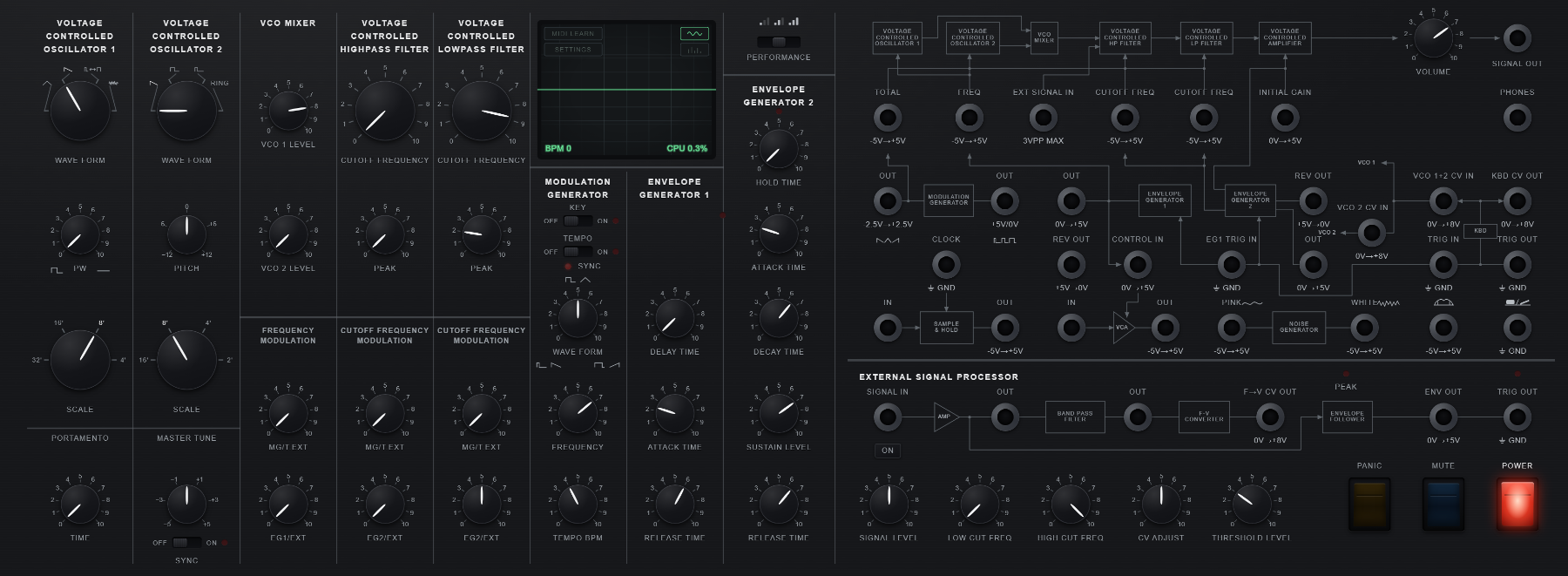
MonoSynth v0.0.3-alpha. Everything below is one page - there is no second screen, no menu bar and nothing to install.
1. Switch it on
- Turn your volume down first. This is a synthesizer with resonant filters and a patch bay that will happily let you build a feedback loop. It can get loud suddenly. Be especially careful with headphones.
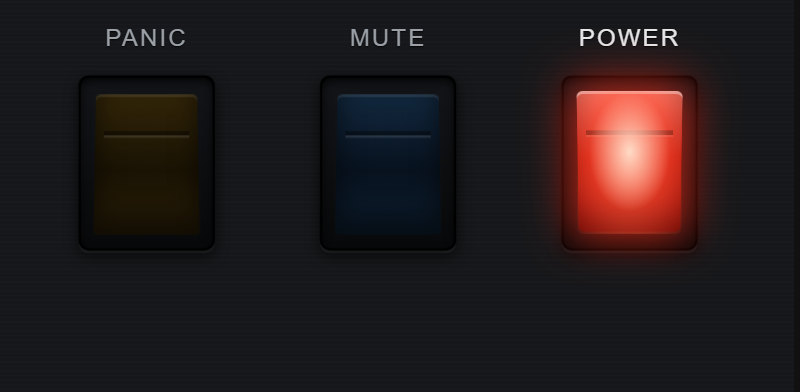
- Throw the red POWER rocker. It lights, the keybed and the patch librarian below the plate come up out of their dimmed state, and the oscilloscope starts drawing.
- Play something. Click a key on the keybed under the plate, or press a on your computer keyboard.
Why there is a switch rather than a "click to start" dialog. Browsers will not let a page make sound until you have deliberately done something. That rule needs a gesture, and a power switch on the front of the instrument is a better one than a modal in front of it. Nothing touches your audio hardware before you throw it.
The instrument is drawn before it is switched on. Everything is on screen from the first paint - every knob, socket, switch and key - just dark and untouchable. A dim panel is not a page that has failed to load.
The other two rockers
- PANIC (amber)
- Every note off, everywhere: it releases the gate, recentres the pitch bend, and sends an all-notes-off to any external MIDI gear. Backspace does the same thing. Reach for it when something is stuck on.
- MUTE (blue)
- Silences the output without stopping anything. The instrument keeps running and keeps drawing.
2. Playing it

There are four ways in, and they all work at once.
- The keybed
- Thirty-seven keys under the plate. Click or tap them. The wheel cheek on its left has PITCH bend, a modulation wheel, an OCTAVE pair and a MOMENTARY switch (marked SW) you can patch as a trigger.
- Your computer keyboard
- a w s e d f t g y h u j k o l p ; ' is an octave and a half laid out like a piano - the black keys are the row above. z and x shift the octave down and up, and so do the OCTAVE buttons on the cheek - they are one control, so whichever you use, the same button lights.
- Shifting the octave
- Two steps down and two steps up. The whole keyboard moves, not only the typing keys: the C printed on each C key is re-lettered to the note that key now plays, so a key marked C4 always plays C4 whatever the octave. The lit button says which way the keyboard has moved and goes un-clickable, while staying lit, when there is no more of it to give.
- A MIDI controller
- See MIDI below.
- A microphone or line input
- The external signal processor along the bottom of the patch bay turns incoming audio into pitch, envelope and trigger voltages you can patch anywhere - see the patch bay below. Your browser asks for microphone permission once, when you switch the instrument on; the audio is processed on your own machine and is never recorded or sent anywhere.
It is monophonic: one note at a time, like the hardware it is modelled on. Holding a second key does not add a voice - it replaces the note according to the priority setting.
3. Watching what you are doing
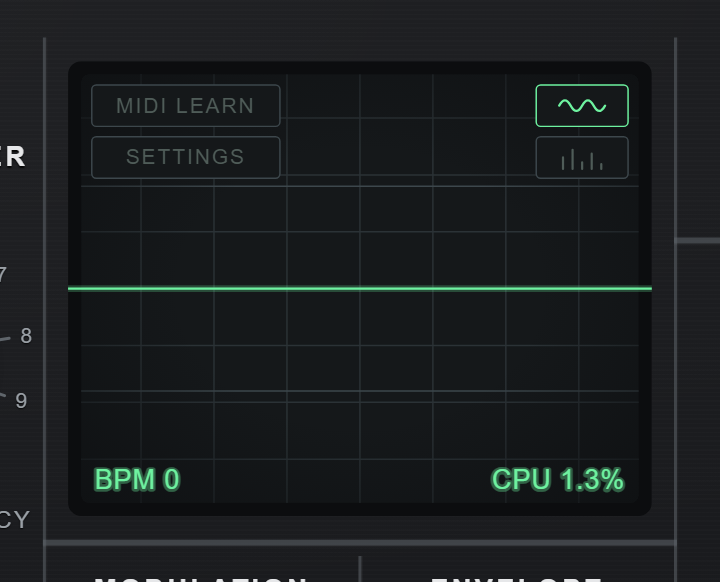
- The two picture buttons, top right
- A single wave and a row of bars: they switch the screen between the waveform and the spectrum. The voltage axis matches the legends printed beside the sockets, so what you see on screen is the voltage a cable from that socket would carry.
- SETTINGS
- Which audio input the external signal processor listens to, and which output the instrument plays through. See choosing your input and output.
- CPU
- The audio thread's real load - a wall-clock measurement of how much of your processor the sound is costing, not an estimate. If the corner is blank, this browser would not let the load be measured, and a guess is not printed in its place.
- BPM
- The tempo the modulation generator syncs to when SYNC is on.
The PERFORMANCE switch
Three positions, at the top of the ENVELOPE GENERATOR 2 column, above the engraved rule that separates it from the envelope's own controls. It trades processor load against smoothness by changing how often the two filters and the two oscillators refresh their settings while a note is sounding. It affects nothing else - not the tuning, not the level, not a knob position.
- ECO
- Refresh every 64 samples, about 750 times a second, and the oscilloscope redraws at 15 frames per second instead of 30. The lightest on your processor. A fast filter sweep can sound stepped.
- BALANCED
- Every 16 samples. The default, and the setting the instrument was voiced at.
- HIGH
- Every sample. The smoothest sweeps, and the heaviest on your processor.
Leave it on BALANCED. Drop to ECO if you hear crackling or the CPU figure is high; raise it to HIGH only if you can hear a fast sweep stepping and have the headroom.
It is not part of a patch. Saving does not record it and loading never moves it - it describes your machine, not your sound, so somebody else's patch cannot decide how hard your computer works.
4. MIDI, and learning your controller
Press MIDI LEARN on the oscilloscope's bezel. It is dim until POWER is thrown. The panel that opens has two columns, IN and OUT, because they are two separate decisions - the device you play from is very often not the one you want to record into. Every setting takes effect the moment you change it; there is no OK button to press, because you change a device in order to hear whether it was the right one.
Learn mode, in four moves
START LEARNING closes the panel and lights the whole plate up. Every learnable control gets a halo, and the colour tells you its state:
- Green
- Free. Nothing is bound to this control yet.
- Blue
- Already bound to a CC. Picking it again re-learns it onto something else.
- Amber, pulsing
- Listening. Move a knob or fader on your controller now.
- Press START LEARNING.
- Click the control on screen you want to bind. It goes amber.
- Move the knob on your hardware. They are bound, and the halo turns blue.
- Repeat for as many as you like - learn mode stays open, because you are usually binding several things in a row. Press Enter or FINISH LEARNING when you are done, and the panel comes back so you can save the result.
While learn mode is running:
- Clicking a control selects it rather than moving it. Dragging, scrolling and the arrow keys are all swallowed, and no cable can be patched.
- Escape cancels the current selection; Escape again ends learn mode and brings the panel back, so you can save what you have just bound. Neither one panics - PANIC is Backspace.
- Delete or Backspace, with a control armed, clears its binding. This is the only way to un-map something from the plate.
Two controls cannot be learned, on purpose. PITCH is already driven by Pitch Bend at full 14-bit resolution and a 7-bit CC would be a downgrade. POWER is excluded because a MIDI message is not a user gesture, so a browser will not start audio from one - a learned POWER would work only where audio was already running, which is exactly when you do not need it.
Interface presets are not patches
The INTERFACE PRESET row saves your whole controller setup - the CC map, both devices, both channels, the bend range - under a name, and restores it next time.
It is stored separately from your patches, and that matters: a patch describes a sound, which travels between machines, while a CC map describes the controller on your desk, which does not. Loading somebody else's patch never rebinds your hardware, and loading a controller profile never changes a knob.
Firefox has no Web MIDI. The panel still opens, still says so, and the binding table still works so you can prepare a map - only the learning itself is disabled. Chrome and Edge have the lot.
5. The patch bay
A cable that returns a sound to itself will build up, and it can get loud. Any patch that lets the instrument's own output reach one of its audio inputs again - PHONES or an ESP output back into EXT SIGNAL IN or SIGNAL IN - is a loop, and a loop feeds itself round and round rather than settling. This is the same howl a microphone makes when it is pointed at its own loudspeaker.
It is worth trying and it is not worth being surprised by. Turn MASTER VOLUME down before you make the connection and bring it up slowly - the volume knob is inside the loop, so it controls how hard the loop drives itself. If it does get away from you, the blue MUTE rocker stops it immediately, and so does pulling either cable out. Be especially careful wearing headphones.
Nothing needs patching to make a sound
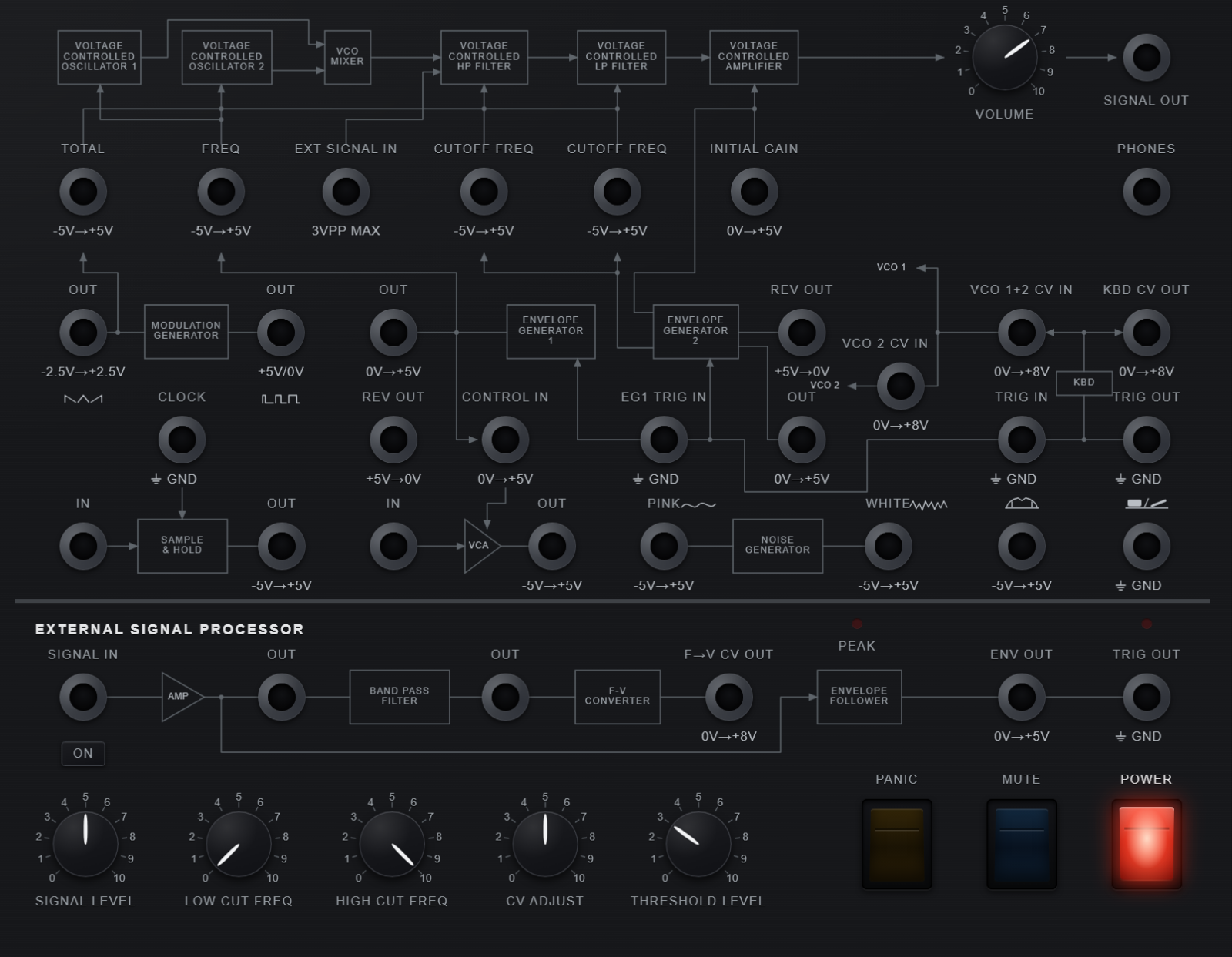
The instrument is semi-modular: the signal path drawn on the plate is already wired up internally, so it plays the moment you switch it on. The keyboard's pitch already reaches both oscillators and its trigger already fires both envelopes. Patching does not build the instrument - it overrides what is drawn.
Plugging a cable into a socket takes over that connection. Patch something into an oscillator's FREQ and your cable is what drives it, until you pull the plug out and the drawn connection comes back.
PHONES - the socket that hands the sound back
Top right, directly under SIGNAL OUT. The two holes look alike and only one of them takes a plug.
SIGNAL OUT is where the sound leaves - it is the end of the engraved arrow across the top of the plate, and on a computer the thing it leaves into is your browser, so there is nothing to patch there and it refuses every cable. PHONES is a second output carrying the same signal, after the VOLUME knob and after MUTE, and it is an ordinary patch point: run a cable out of it into anything on the plate.
What it is for is letting the instrument hear itself. Patch PHONES → SIGNAL IN and the external signal processor is suddenly pointed at your own playing instead of at a microphone: its envelope follower can open your own filters, its pitch tracker can play your own oscillators, and its trigger can fire your own envelopes. The factory patch Self Processing, in the EXT SIGNAL bank, is that patch already wired - and it is the only one in that bank that needs no microphone at all.
PHONES into an audio input is a feedback loop. Sending the envelope or the pitch onward is a control signal and settles; sending the sound round again does not. PHONES → SIGNAL IN together with ESP OUT → EXT SIGNAL IN closes the circle, and it will howl.
Turn MASTER VOLUME down first and bring it up slowly. MUTE stops it at once, because PHONES is taken after the mute; so does pulling a cable. It is a good sound to know how to make and a bad one to meet by accident on headphones.
The gestures
- To patch
- Drag from one socket to another. Either direction - reach for whichever end is nearer, and the instrument sorts out which is the output. While you drag, every socket that would not accept the cable dims, so you can see where it can land before you let go.
- To unplug
- Click the socket. A press that does not move pulls the plug out.
- To move one end
- Drag from a socket that already has a cable in it. You pick up that cable's loose end, with the far end staying put - so re-routing is one gesture rather than unplugging and patching all over again.
- To give up mid-drag
- Let go over bare panel. The cable springs back and nothing changed.
- Without a mouse
- Tab to a socket, Enter to select it, Enter on a second socket to patch the pair, Escape to cancel. The whole patch bay works from the keyboard, and it says out loud what happened at each step.
One plug per socket. A socket with a cable in it will not take a second one at either end - which is why an occupied socket dims while you are dragging rather than accepting the cable and then springing it back.
The external signal processor - putting your own sound in
The strip along the bottom of the patch bay. Feed it a microphone, a guitar, a drum machine or another synthesizer, and it gives you back three things you can patch anywhere.
- The sound itself
- SIGNAL IN takes the input and ON beneath it asks your browser for the microphone - the socket glows red while it is live. Which input it opens is chosen in SETTINGS; see choosing your input and output below. SIGNAL LEVEL, LOW CUT FREQ and HIGH CUT FREQ clean it up, and the PEAK lamp warns when you are driving it too hard. Patch its OUT into the filters and the instrument becomes an effects processor.
- Its pitch
- The F-V CONVERTER follows the pitch it hears and puts it out at F→V CV OUT as 0 to +8 V, the same volt-per-octave scale as the keyboard. Into an oscillator's FREQ, and the instrument plays along with you. CV ADJUST trims the tracking.
- Its level and its attacks
- The ENVELOPE FOLLOWER tracks loudness at ENV OUT, and fires TRIG OUT whenever the sound crosses THRESHOLD LEVEL. Into an envelope, and your playing triggers the instrument.
Your browser asks for the microphone when you switch the instrument on, and granting it does not switch the input on. MonoSynth asks once, releases the microphone immediately, and uses the permission only to read the NAMES of your audio devices - which is the browser's rule for loudspeakers as well, so it is also what fills in the output list in SETTINGS. Nothing is listening until you press ON. Decline and the instrument works in full; you can allow it later from SETTINGS instead. The audio is processed on your own machine and is never recorded or sent anywhere.
SIGNAL IN takes no cable while the input is open. That socket adds the live input to whatever is patched into it, so a cable arriving while a microphone is running would put two sources on one hole with nothing on the panel to say which you are hearing. While ON is lit the socket is dimmed as a patch target and its cursor says no; pressing ON also pulls out a cable that was already there. Press ON again and it behaves like every other socket.
A live microphone and loudspeakers in the same room is a feedback loop too, and it is the oldest one there is. With SIGNAL IN open and the instrument playing out loud, the microphone hears the speakers, the speakers play what the microphone heard, and the two climb together into a squeal.
Use headphones for anything involving the microphone, or keep MASTER VOLUME low and the microphone away from the speakers. SIGNAL LEVEL and the PEAK lamp tell you how hard the input is being driven; MUTE and the ON button either of them stop it.
Choosing your input and output
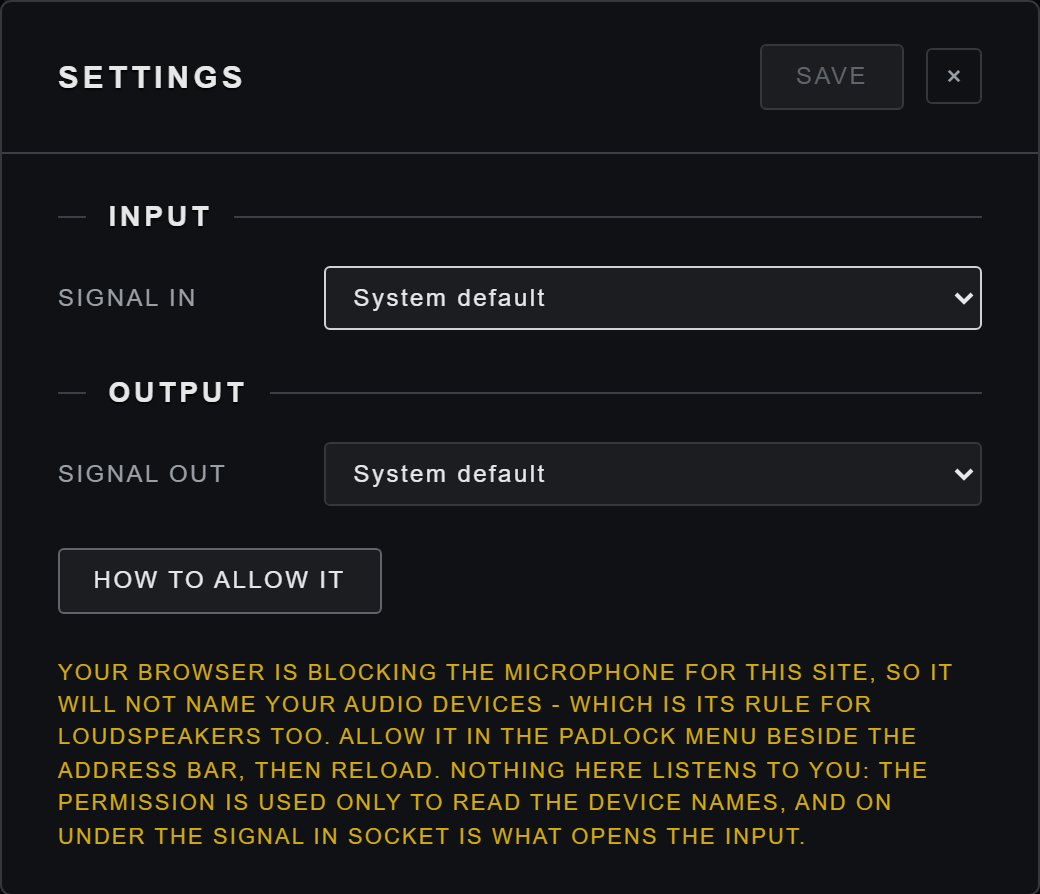
INPUT is the device SIGNAL IN listens to. OUTPUT is where the whole instrument plays - the same sound that leaves by SIGNAL OUT. Choose, then press SAVE: the button stays dim until something has actually changed, so the panel always tells you whether what you are looking at is what the instrument is doing. Both choices come back next time you visit.
Choosing an input does not open it. The list says which device; the ON button under the socket says whether. If the input is already live when you save, it moves to the new device straight away.
A browser will not name your devices until you have opened the microphone once. Before that, both lists show the right number of entries with no names, greyed out - that is a privacy rule in the browser rather than a fault, and it applies to loudspeakers as well as microphones. Press ON, answer the prompt, and the names appear.
Choosing an output needs a Chromium browser - Chrome, Edge, Brave, Opera or Vivaldi. Safari and Firefox have no way for a page to pick a loudspeaker, so there the instrument plays through whatever your system is set to and the panel says so in place of the list.
If a device you saved has been unplugged since, the instrument falls back to your system default, says which device is missing, and forgets it so it is not asked for again.
If the lists have no names in them
Then the permission has not been given, and the lists are all MonoSynth can show: your browser deliberately hides the names until you allow it. This is not something the page controls. The permission lives in two places, either of which can be switched off, and the instrument cannot see or change either one.
- 1. The browser, for this site
- The usual one. If you have not been asked, switch the instrument on and answer the prompt, or press ALLOW DEVICE NAMES in SETTINGS. If you said no once - or chose Never allow - the prompt will not come back on its own, and SETTINGS says HOW TO ALLOW IT instead of offering a button that cannot work. Clear it from the icon at the left of the address bar, which opens the site's own permissions: Chrome, Edge, Brave, Opera and Vivaldi put Microphone in that menu; Firefox shows it there as a blocked permission with a cross to remove; Safari keeps it in Safari › Settings › Websites › Microphone. Reload the page afterwards.
- 2. Your computer, for the browser
- The one people miss. Even with the site allowed, the operating system can be refusing the browser the microphone altogether - and then the browser's own prompt may never appear, or appear and change nothing. On Windows it is Settings › Privacy & security › Microphone, where both Microphone access and the entry for your browser have to be on. On macOS it is System Settings › Privacy & Security › Microphone, with your browser ticked.
Two smaller things worth knowing. Allow this time, where your browser offers it, lasts until you reload - the names will be gone again next visit, and the instrument will offer to ask once more. And the lists are your system's device lists: anything disabled or unplugged at the operating system level is not there to be chosen, whatever the browser has been allowed.
None of this stops you playing. Decline everything and the instrument works in full - you get your system's default output, which is what most people want anyway, and SIGNAL IN simply stays unused. The permission buys the device names, and nothing listens until you press ON.
Everything is volts, and that is why anything patches to anything
Every signal here - audio, control voltage, gate - is measured in volts, and the number printed under each socket is the real range. Audio is −5 V to +5 V. Pitch is one volt per octave. A trigger is 0 V resting and +5 V fired.
There is no type system beyond "outputs go to inputs", so a cable from PINK NOISE OUT into a filter's CUTOFF FREQ works with nothing in between - and the oscilloscope's voltage axis is the same scale as the legends, so you can watch exactly what your cable is carrying.
Three patches to try first
- MG OUT → VCO FREQ - the modulation generator into an oscillator's pitch. Vibrato, or a siren, depending on the MG's speed.
- EG 2 OUT → VC LPF CUTOFF FREQ - an envelope sweeping the filter. The classic plucked or swept sound.
- NOISE OUT → SAMPLE & HOLD IN, then S&H OUT → VCO FREQ - random stepped pitches, clocked. The 1970s computer noise.
6. Keeping and sharing what you make
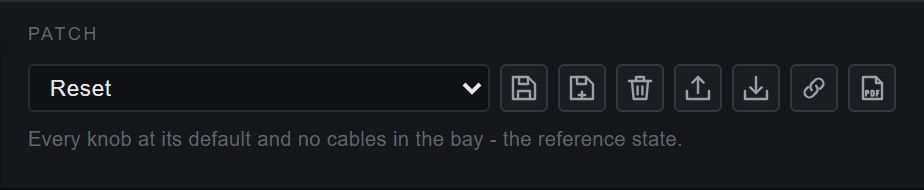
The dropdown is the library and the readout at once: it always names what is actually in the instrument. Factory patches sit in their eight banks, CUSTOM - everything you have saved - comes second, straight after FACTORY, and the very first entry is Reset: every knob at its default and the bay empty, which is where to go when you want to start again from nothing.
Change anything after loading a patch and a transient entry appears at the top of the list reading Unsaved, in the same yellow the cables use. That is not a warning - it is the honest answer to “which patch is this?” when the answer is “none of them yet”. Choosing the patch you started from loads it again and throws your changes away.
- SAVE
- On a patch of your own, writes straight over it and asks nothing. Anywhere else - a factory patch, an imported file, a patch from a link - there is no slot of yours to write to, so it asks for a name. See naming a patch below.
- SAVE AS
- Always asks, which is how you keep a second copy of something rather than replacing it.
- DELETE
- Removes a patch of yours from this browser and puts the panel back to Reset. It asks first, and it cannot be undone: nothing of the patch is left anywhere afterwards, so EXPORT anything you might want again before you press it. Factory patches cannot be deleted.
- EXPORT / IMPORT
-
Write the patch to a
.jsonfile, and read one back. This is the only form that survives clearing your browser's data, and the file is plain text you can read and edit by hand. - COPY LINK
-
Puts the whole patch into a URL you can send to somebody. The patch
travels in the part of the address after the
#, which browsers never send to a server - so a patch link reaches nobody but the person you send it to. Theutm_parameters in front of the#only say that the link came from this button; see what a shared link carries if you would rather take them out. - EXPORT PDF
- Prints the patch as a two-page sheet you can keep on paper or send to somebody who is not using this instrument. See the printed patch sheet below.
Naming a patch of your own
SAVE AS - and SAVE on anything that is not already yours - opens a small panel with two fields. NAME is what the list will call it. NOTES is a sentence or two about the sound: it shows under the list whenever the patch is loaded, and it is printed on the patch sheet, so it is worth writing something you will still understand in six months. Both are optional except the name.
The name has to be one nothing in the library is already
using, and the panel tells you as you type rather than after you
press SAVE - the button stays dim and a line underneath says which list
already has that name. Names are compared loosely on purpose:
My Lead and my lead are the same name here, so
you cannot end up with two patches you have to open to tell apart.
To replace one of your own patches, load it and press SAVE. That is the only way to overwrite, and it is deliberate: the one gesture that destroys a patch you saved should be one you took on purpose, with that patch in front of you.
The printed patch sheet
EXPORT PDF writes two A4 landscape pages named after the patch. It is the answer to “how do I write this one down”: paper does not need a browser, an account or this website to still be here, and a sheet can be read by somebody rebuilding the sound on a different instrument altogether.
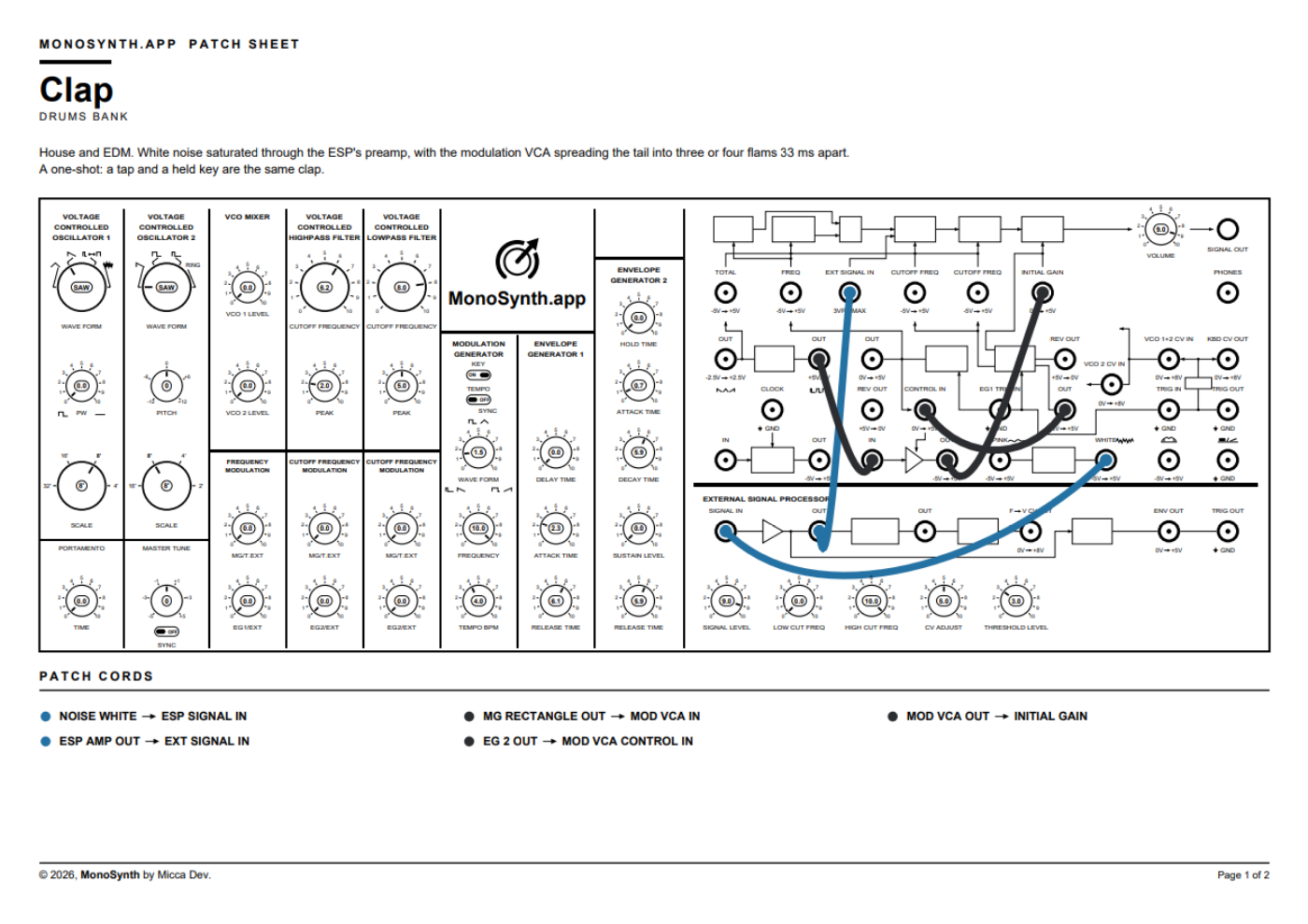
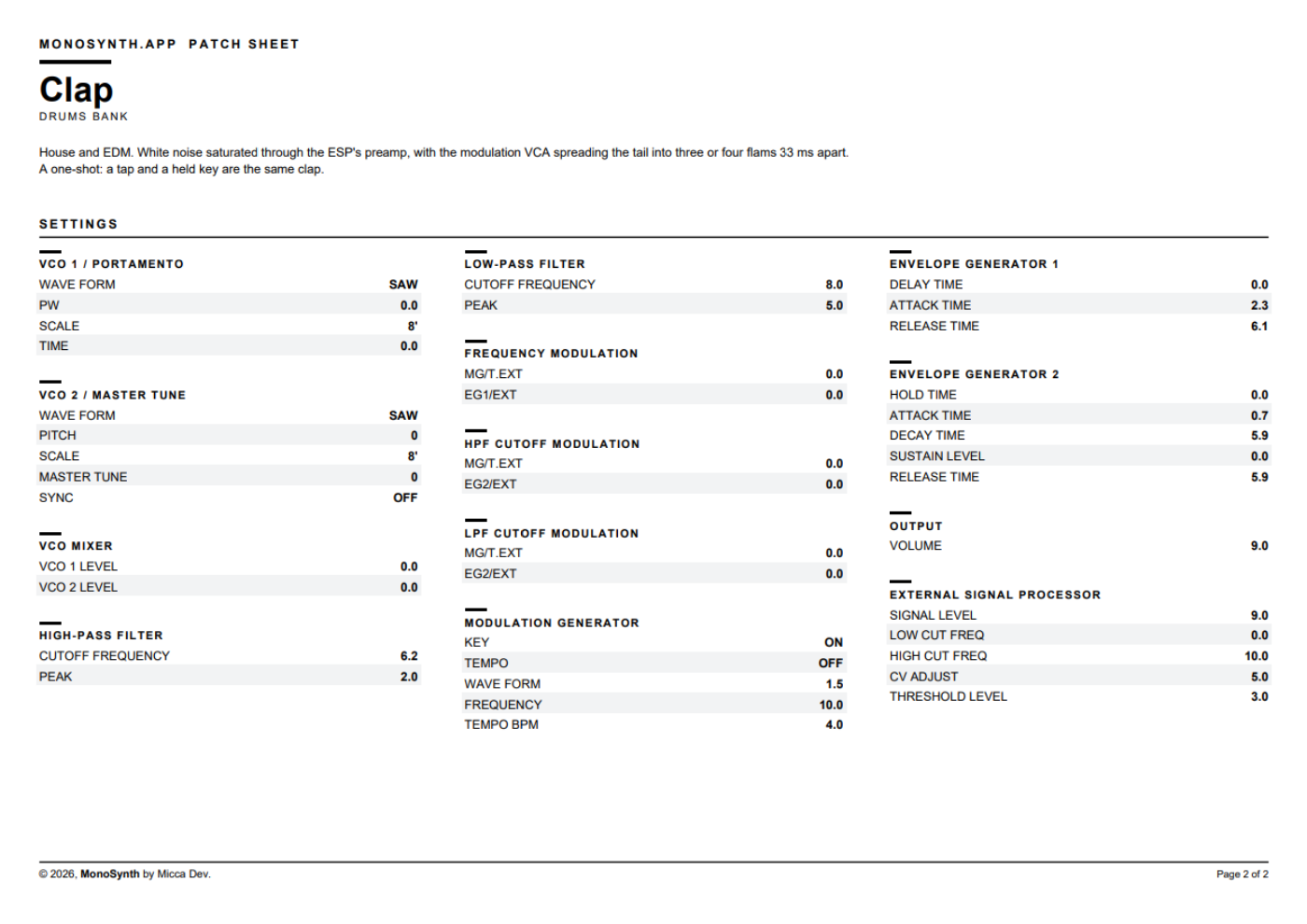
The sheet prints the dial, not the engine. A knob whose silkscreen runs 0 to 10 is printed as a number between 0 and 10 - the reading you would take by looking at the panel - rather than in hertz or milliseconds. The two bipolar rings print signed, and a switch prints the word on the panel. That is what makes the sheet something you can set an instrument from: every figure on it is one you can dial in.
It prints the panel that is on screen, not the patch you last saved. Move a knob, throw a switch or plug a cable and export again without saving: the sheet follows. That is the point - the sheet records what you are playing, which is often not yet a patch at all.
Both pages carry MonoSynth.app as a link, and it is not decoration: it opens the patch. Anybody with the PDF gets the sound back in a browser without typing a single number in.
To print it on paper, use A4 landscape at 100 % - every line fits inside the printer's own margins at that size, and the dial numerals are the smallest ink on the page, so scaling it down is what makes them unreadable. There is no oscilloscope, no PERFORMANCE switch, no PANIC, MUTE or POWER, no wheels and no keyboard on the sheet: none of them is part of the patch, and a sheet is a record of a sound rather than a photograph of a machine.
Your patches live in your browser and nowhere else. There is no account and no cloud, so nothing to log into - and nothing to restore from either. Clearing site data, switching browsers, using a private window, or the browser evicting storage on its own will lose them, and we have no copy. Export anything you care about, to a real file. This is an alpha, and the legal page says plainly that there is no warranty of any kind - including none about keeping your patches.
The librarian appears once you accept analytics in the storage notice. Decline and the whole block above is replaced by a short explanation: no saving, no factory presets, no import, and none of the three ways out either - no EXPORT, no COPY LINK and no EXPORT PDF. Nothing already saved is deleted and it all returns the moment you accept - but while you are declined you cannot get a patch out at all, so export first, then decide.
7. If something seems wrong
- Why is there no sound at all?
- Check the red POWER rocker is lit, check the blue MUTE rocker is not, and check MASTER VOLUME on the patch half. If you have been patching, make sure you have not routed the amplifier's control voltage away from anything that opens it.
- How do I stop a note that is stuck on?
- Press Backspace, or the amber PANIC rocker.
- Why is it crackling, stuttering or dropping out?
- The machine is being asked for more than it can deliver in time. Move the PERFORMANCE switch to ECO, and check the CPU figure in the oscilloscope's corner. Closing other tabs helps more than anything else here: they share the same processor.
- Why is it suddenly howling or squealing?
- Something is feeding back. Either a cable is carrying the instrument's own sound back into one of its audio inputs - PHONES or an ESP output into SIGNAL IN or EXT SIGNAL IN - or the microphone is open and can hear your loudspeakers. Press the blue MUTE rocker to stop it at once, then turn MASTER VOLUME down and pull the cable, or switch SIGNAL IN off. A loop is a fine thing to play with deliberately at a low volume.
- Why does a fast filter sweep sound stepped?
- The opposite problem. Move PERFORMANCE up to BALANCED, or to HIGH if you have the headroom.
- Why does it sound thin and clean where it should sound aggressive?
- Part of the instrument probably failed to load and fell back to a plainer substitute rather than going silent. A reload usually fixes it. It is worth mentioning in a bug report.
- Why does the keyboard play notes while I am typing in a box?
- It should not - tell us, and say which box. Some panels deliberately stay playable behind them, so you can hear what you are setting.
- How do I report a bug?
- The single most useful thing to include is the build identifier - the legal page prints it in a block you can copy straight into your message. Then use the CONTACT link in the footer.
What works where
- Chrome, Edge
- Everything - MIDI, and choosing which loudspeaker the instrument plays through. The other Chromium browsers, Brave, Opera and Vivaldi, are the same engine and behave the same way.
- Firefox
- Everything except MIDI, which Firefox does not implement, and choosing an output, which no version offers a page. The instrument says so in both places and carries on. Choosing an input works.
- Safari
- Try it. Safari has been slower than the others to support what this instrument needs, and a version that cannot manage it will fall back and sound wrong rather than silent. It has no MIDI and no way to pick an output either; choosing an input works.
- A private window
- Fine to play in. Patches will not persist - the librarian says so rather than failing - and EXPORT and COPY LINK still work. Your choice of audio device will not be remembered either, but it still applies for as long as the tab is open.
More than the basics? The legal page lists the published sources the instrument's mathematics was written from.